

Set up chart of accounts
The chart of accounts is the financial backbone of your building's accounting. It organizes all accounts into categories following the Belgian PCMN standard for HOAs.
A new building: set up its accounting
You create a building in Patrimony (through to Finish and save). You set up its fiscal year and chart of accounts afterwards, in Financial, yourself and in one window. Until you do, the building shows Accounting not set up yet in Financial instead of its dashboard.
Step 1: open the Set up accounting window
- Go to Financial and click the building.
- You see Accounting not set up yet with two steps and their status:
- Fiscal year: Not set up while the building has no fiscal year, Set up when it has one.
- Chart of accounts: Not confirmed, with the number of accounts SNDQ preselects.
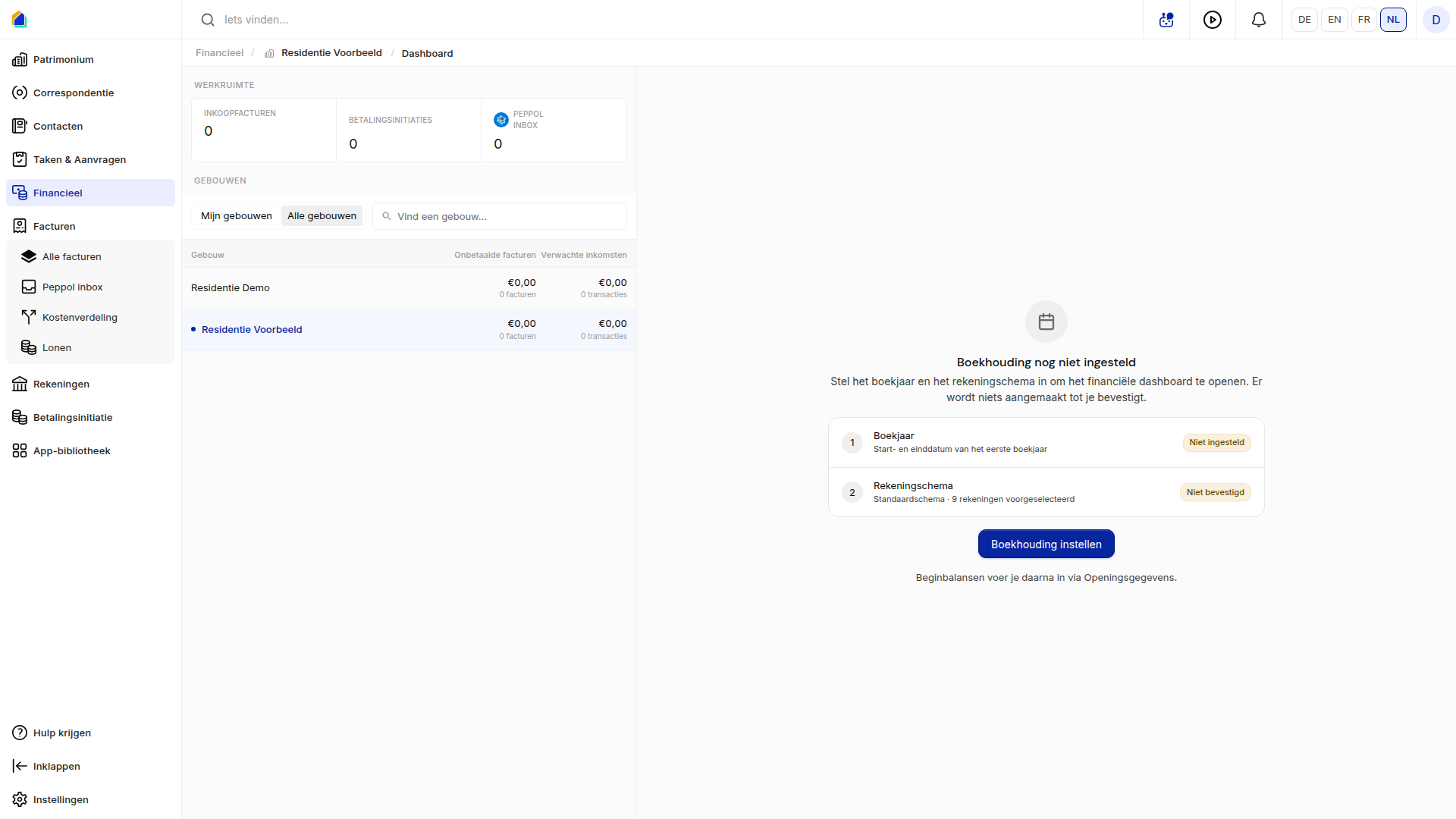
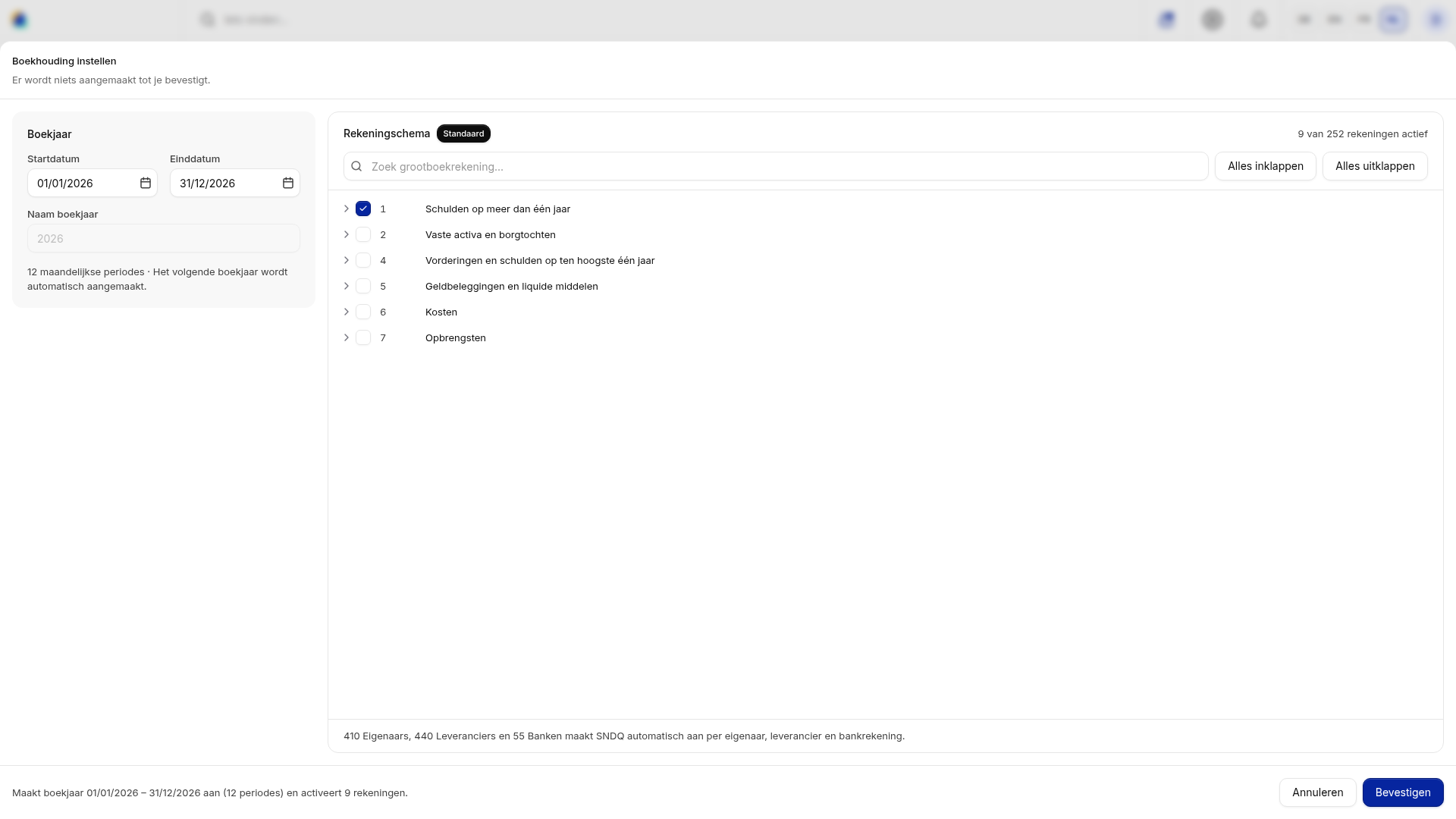
- Click Set up accounting. The Set up accounting window opens: the Fiscal year on the left, the Chart of accounts on the right. Nothing is created until you click Confirm; Cancel closes the window without saving anything.
Step 2: the first fiscal year
On the left, under Fiscal year:
- Pick the Start date and End date of the first fiscal year. SNDQ suggests the current calendar year (1 January to 31 December). When the building's year runs differently, for example 1 July to 30 June, change both dates.
- SNDQ fills in the Fiscal year name itself: the year (2026), or both years when the fiscal year spans two (2025-2026). You cannot change it.
- Below the dates you see how many monthly periods the year has, for example "12 monthly periods".
You do not set up the next fiscal year: SNDQ creates it automatically.
Rules for the first fiscal year. When a date breaks one, the message shows under the field and Confirm stays grey:
| Rule | Message |
|---|---|
| It starts today or earlier. | The first fiscal year must start today or earlier. |
| The end date is at least one day after the start date. | The end date must be at least one day after the start date. |
| It lasts at most 24 months. | The first fiscal year can last at most 24 months. |
When the building already has a fiscal year, the window only shows it (name and dates) on the left, and you only choose the chart of accounts.
Step 3: the chart of accounts
On the right, under Chart of accounts (labelled Default):
- At the top you see how many accounts are active, for example "9 of 252 accounts active". The accounts every building needs are ticked already and cannot be unticked.
- Tick the accounts the building uses, for example the fire insurance account, 6140. Type a name or number in Find ledger account... to find one quickly, or open the classes with Expand all (Collapse all closes them).
- Ticking an account ticks its parent accounts too. Ticking a parent account ticks every account below it.
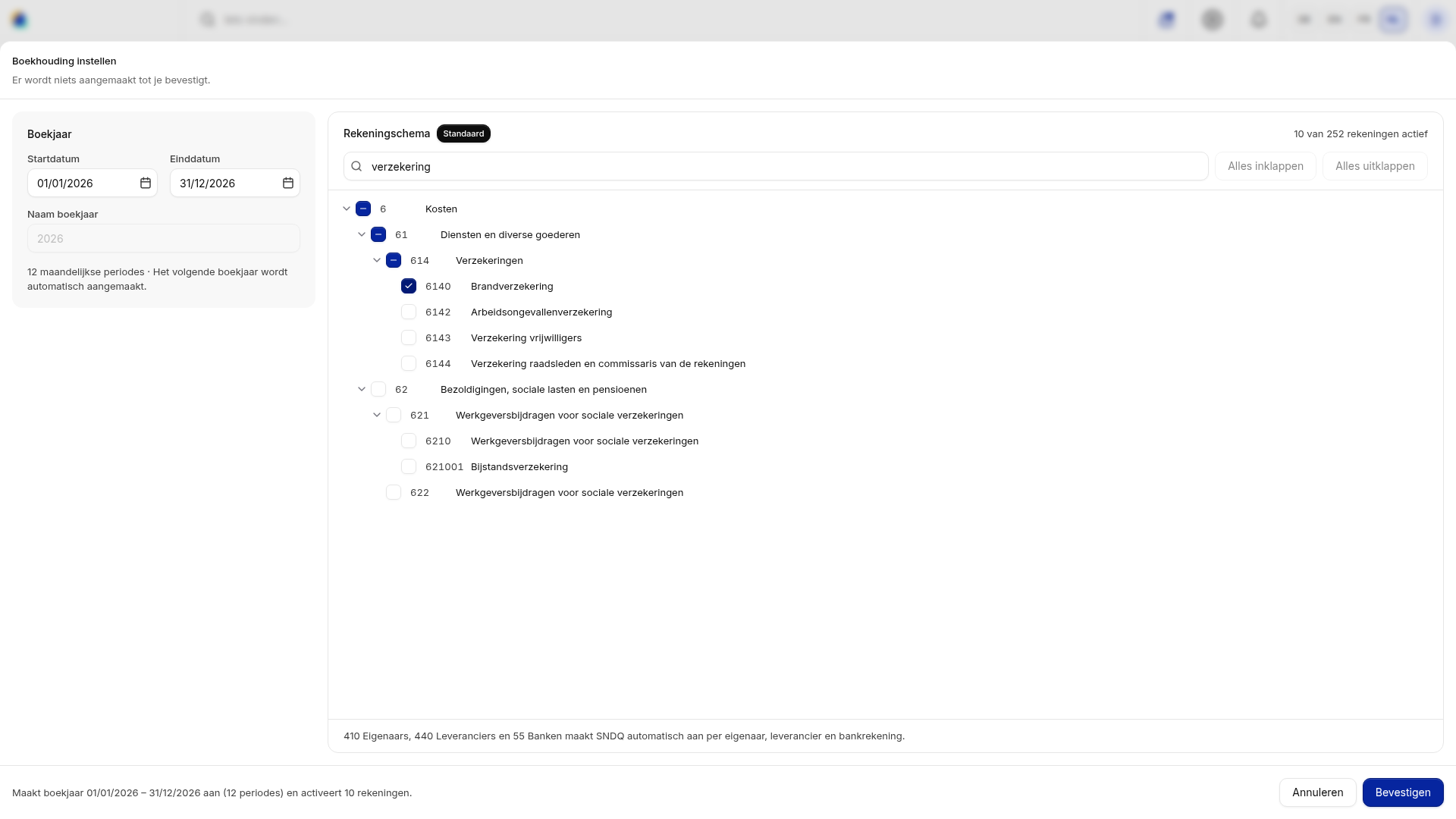
You do not tick 410 Owners, 440 Suppliers and 55 Banks: SNDQ creates them automatically per owner, supplier and bank account. You can always add accounts later (see Good to know).
Step 4: confirm
- The bottom of the window says what SNDQ will do, for example "Creates the fiscal year 01/01/2026 – 31/12/2026 (12 periods) and activates 10 accounts." When the building already has a fiscal year, it only says how many accounts SNDQ activates.
- Click Confirm.
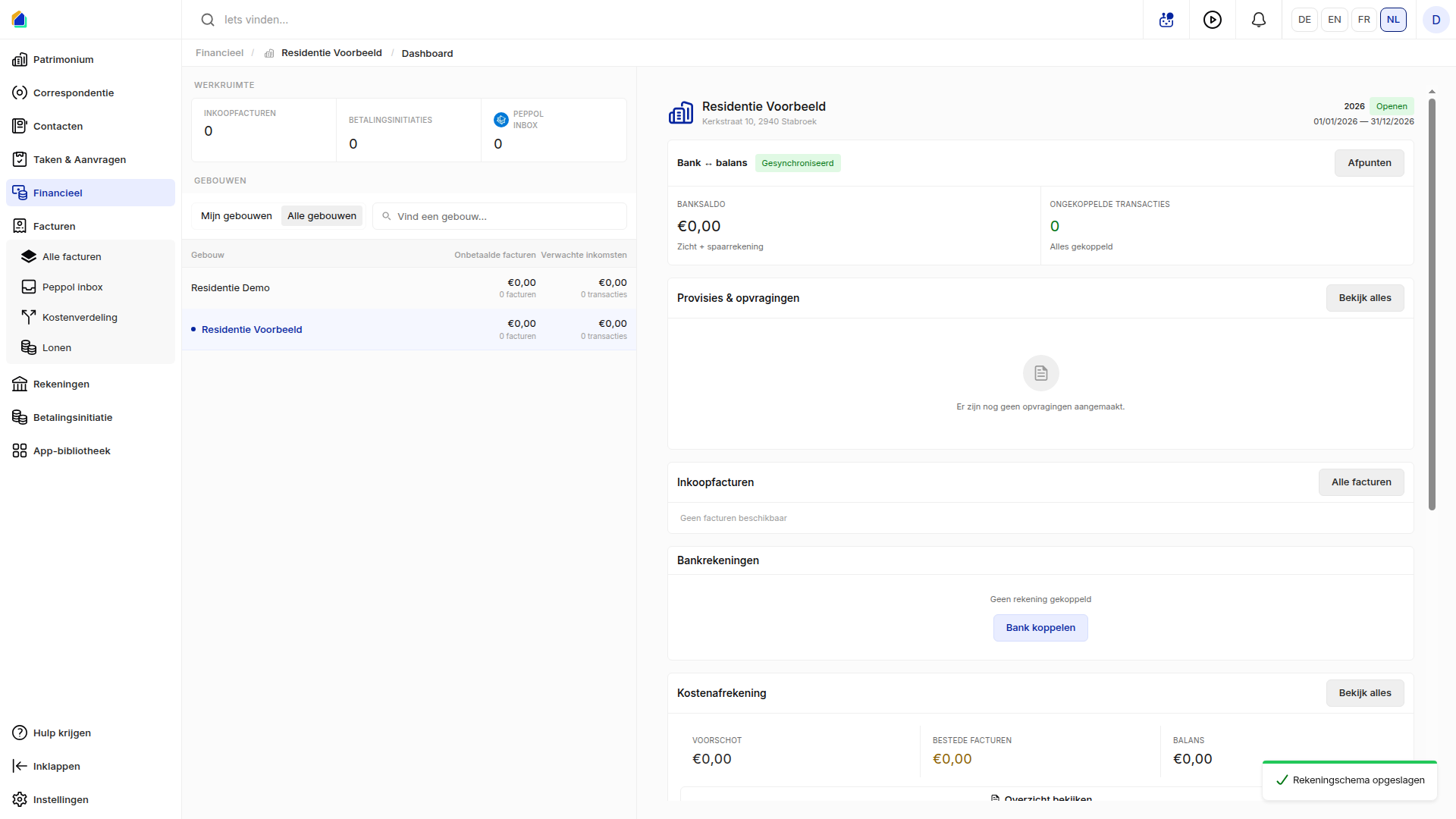
- You see Chart of accounts saved and the building's financial dashboard opens, with the new fiscal year, its status Open and its dates at the top right.
When confirming fails, the error shows at the bottom of the window, left of Cancel and Confirm.
Afterwards
You enter the opening balances in Set up opening data: the owners', suppliers' and bank accounts' balances on the day you take over the building.
The screenshots on this page show the app in Dutch; the screens are the same in English.
Navigate to the chart of accounts
Go to Financial, select a building, and click Chart of accounts under Quick access.
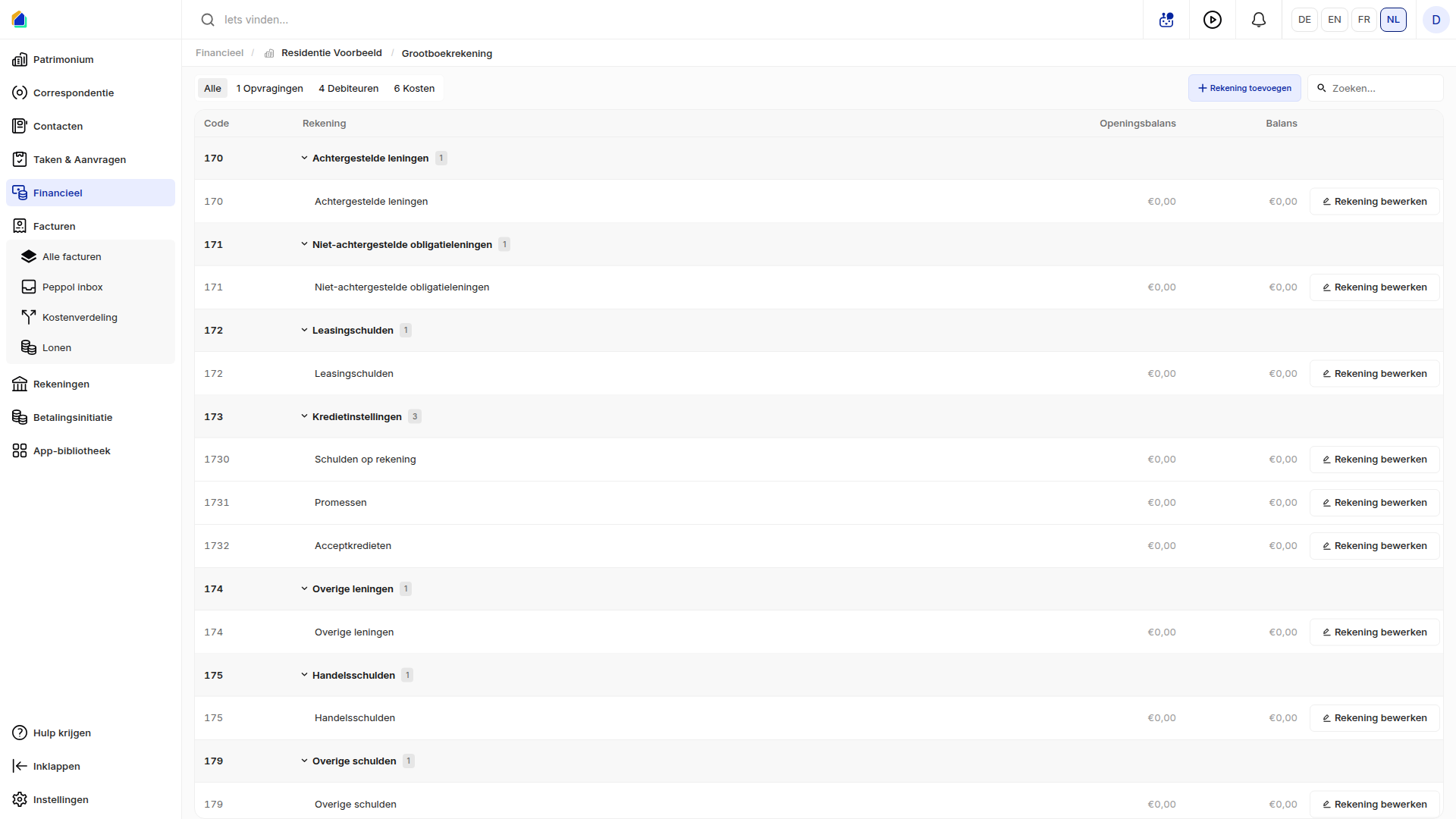
Account categories
Use the tabs at the top to filter by category:
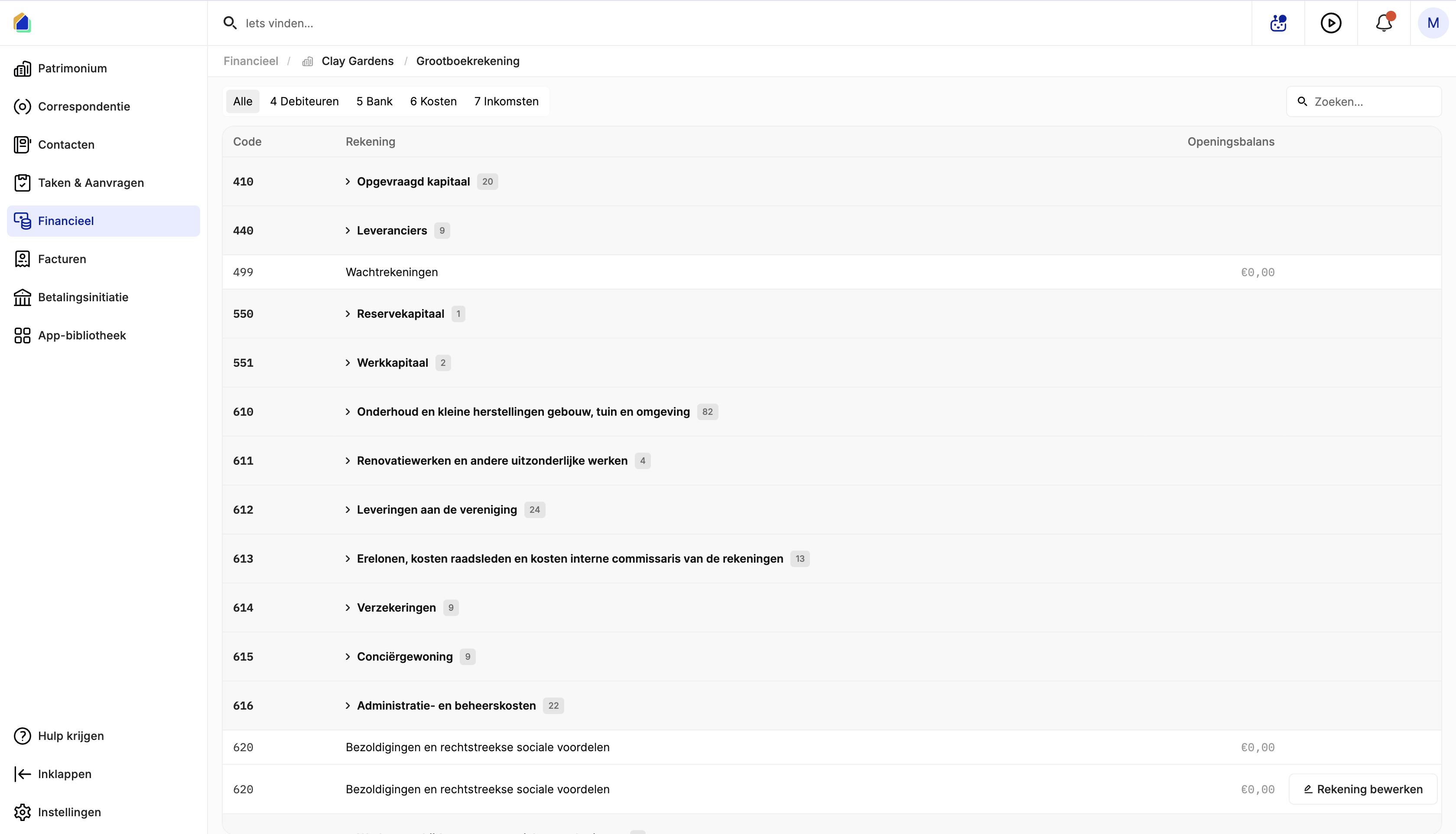
| Tab | Description |
|---|---|
| All | View all accounts |
| 4 Debtors | Amounts owed to the HOA (co-owner contributions, receivables) |
| 5 Bank | Bank accounts and cash |
| 6 Expenses | All expense accounts (maintenance, insurance, administration, etc.) |
| 7 Income | Revenue accounts |
Account structure
Accounts are organized hierarchically:
| Level | Example | Description |
|---|---|---|
| Parent account | 610 | Category header — shows the number of sub-accounts |
| Sub-account | 61000 | Individual account within the category |
| Owner sub-account | 10001 | Per-owner account within a parent |
Click on a parent account to expand and see all sub-accounts.
Main account categories
| Code | Category |
|---|---|
| 410 | Called-up capital — one sub-account per co-owner |
| 440 | Suppliers — accounts for supplier payables |
| 499 | Suspense accounts — temporary holding accounts |
| 550 | Reserve capital |
| 551 | Working capital |
| 610 | Maintenance and small repairs |
| 611 | Renovation and exceptional works |
| 612 | Supplies to the association |
| 613 | Fees, council costs, internal auditor costs |
| 614 | Insurance |
| 615 | Concierge residence |
| 616 | Administration and management costs |
| 620 | Salaries and direct social benefits |
| 630 | Depreciation on fixed assets |
| 634 | Impairments on receivables |
| 640 | Taxes and fees |
| 642 | Miscellaneous costs |
| 650 | Bank costs and debt charges |
| 657 | Miscellaneous financial costs |
| 693 | Carried-over funds |
| 700 | Advance payments for reserve capital |
Edit an account
Click on a sub-account, or on Edit account at the right of its row, to open the edit panel.
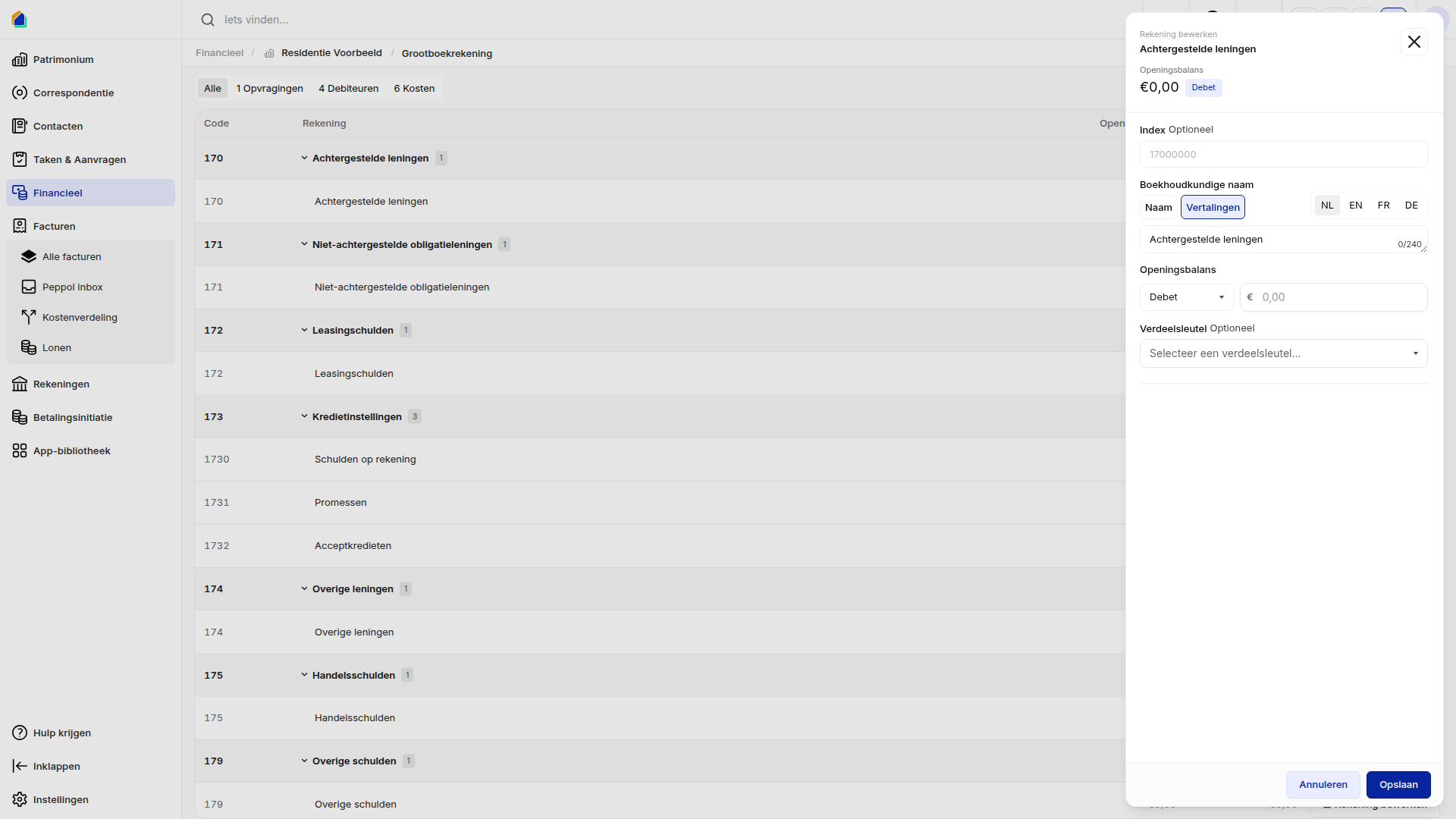
Expense and income accounts (6xx, 7xx)
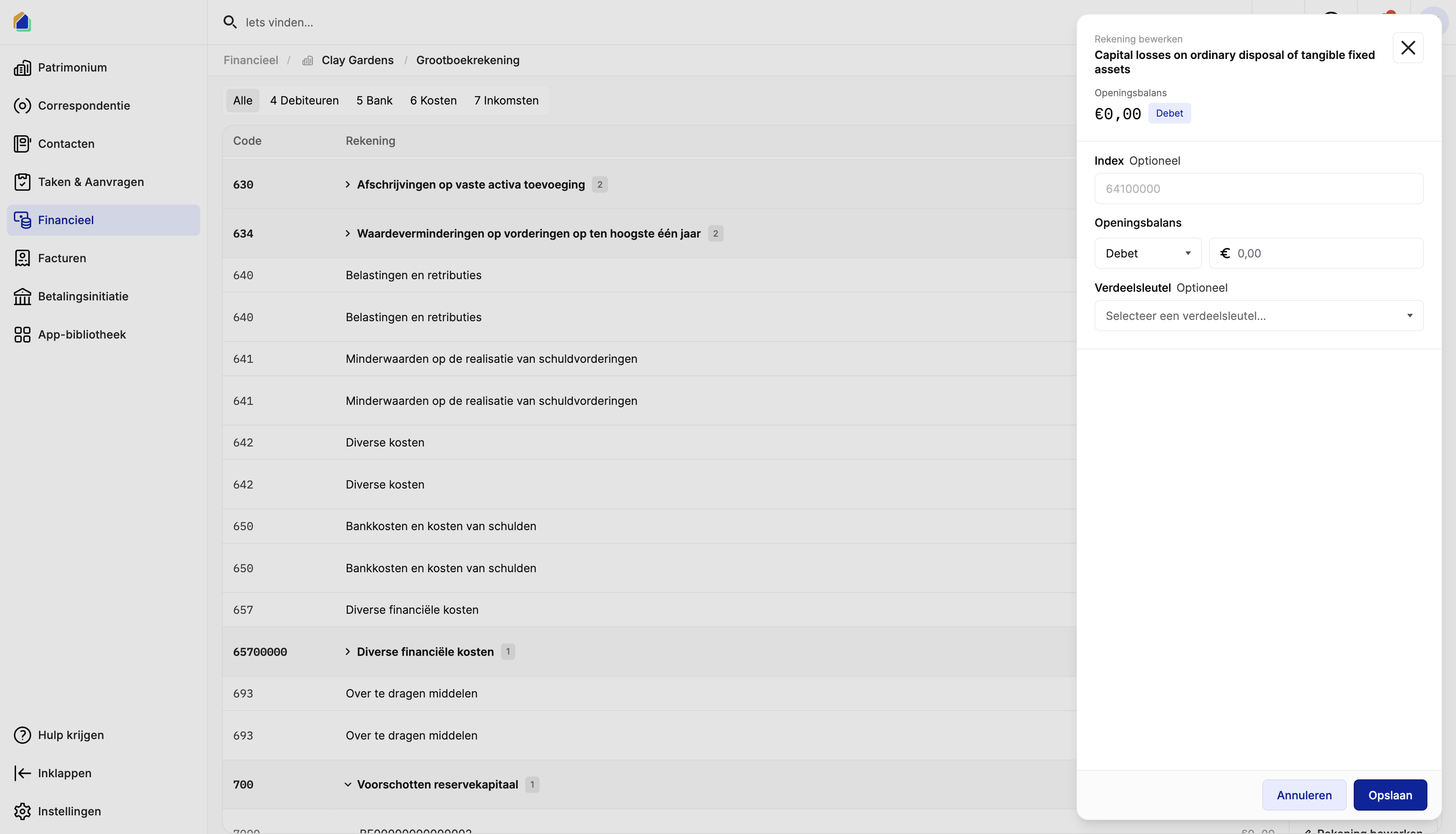
| Field | Description | Required |
|---|---|---|
| Account name | Name of the account | Yes |
| Opening balance | Opening amount with Debit or Credit side | No |
| Index | Custom index number for sorting | No |
| Distribution key | Select which distribution key to use for allocating costs to co-owners | No |
Debtor accounts (4xx — per owner)
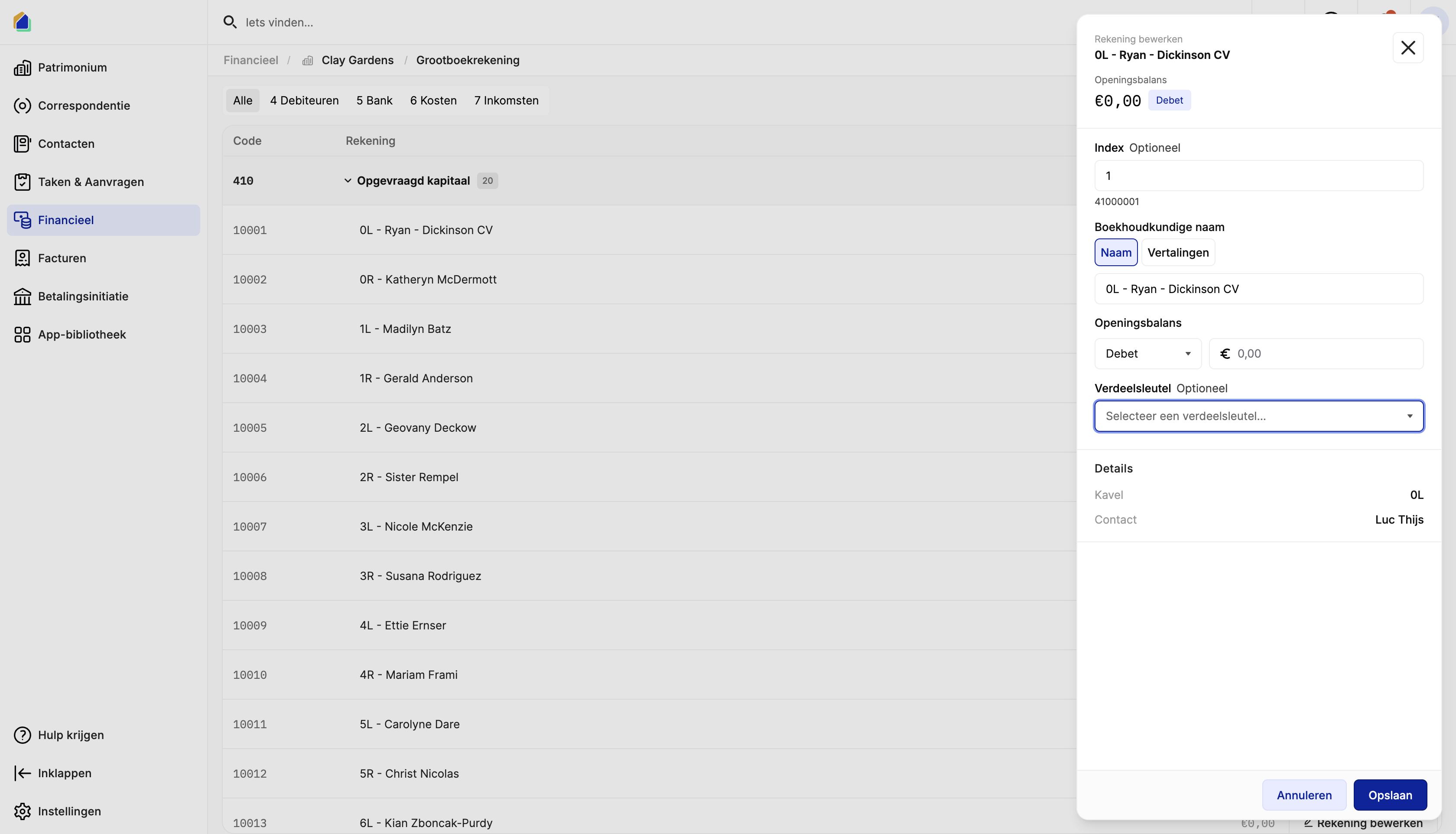
| Field | Description | Required |
|---|---|---|
| Account name | Format: Unit — Owner Name | Yes |
| Index | Sorting index | No |
| Accounting name | With tabs for name and translations | No |
| Opening balance | Opening amount with Debit or Credit side | No |
| Distribution key | Distribution key for this account | No |
The details section shows the linked unit and owner contact (read-only).
Distribution key
The distribution key determines how costs on an account are split among co-owners. When you assign a distribution key to an account:
- All expenses booked to this account are automatically allocated according to the key
- Each co-owner's share is calculated based on their shares in that distribution key
Select from available distribution keys configured for the building, or leave empty to allocate manually.
Opening balance
For each account, you can set an opening balance by choosing a side (Debit or Credit) and entering an amount. This is used when migrating from another accounting system or starting a new fiscal year. See Set Up Opening Data for the full migration process.
Good to know
- Per-owner accounts (410) — debtor accounts under code 410 are automatically created per co-owner, linked to their unit and contact.
- Distribution keys — assigning a distribution key to an account ensures automatic cost allocation. This is essential for transparent cost distribution to co-owners.
- Translations — account names can be translated for multilingual support.
- Search — use the search bar to quickly find accounts by name or code.
Related articles
- Add an account to the chart of accounts
- Create advance requests
- Send provision letters
- Create an internal transfer
Need help?
Contact our team at info@sndq.be or use the Get Help option in the SNDQ application.