

Discover SNDQ
New to SNDQ? This page gives you the big picture in about 10 minutes: what SNDQ does, how your data is organised, how money moves through a co-ownership (VME), and what a year as a syndic looks like in the application. You won't create anything here. Each section links to step-by-step guides for when you're ready.
INFO
The videos on this page have Flemish captions.
What is SNDQ?
SNDQ is a cloud platform for Belgian syndics to manage co-ownerships (VMEs). It runs in your browser, so there is nothing to install.
Everything a syndic does sits in one place:
- Buildings and co-owners: units, shares, distribution keys, meters and documents
- Bookkeeping: double-entry accounting per building, with working capital, the reserve fund, provisions and the yearly cost settlement
- Invoices and payments: supplier invoices via Peppol, bank sync with Isabel or Ponto, and payments sent straight from SNDQ
- General meetings: invitations, proxies, votes weighted by shares, and the minutes
- Correspondence: emails, letters and registered letters to a whole building in one go
- SNDQ at home: a portal where co-owners find their documents and building information
SNDQ works both for professional syndics who manage buildings for others and for co-owners who manage their own building.
How SNDQ is organised
Your workspace is your syndic office. Inside it, every building is one VME, and almost everything you do belongs to a building. Three ideas to remember:
- Everything revolves around the building. A building has units (apartments, parking spaces, storage rooms), meters, suppliers, documents and meetings. In Financial, you always work on one building at a time: you choose it in the selector at the top.
- Contacts are shared. You create a co-owner, tenant or supplier once and link them to as many units or buildings as needed.
- Distribution keys decide who pays what. Each building has a default key based on the shares. For special cases you add extra keys, for example a lift key that leaves out the ground floor. Provisions, invoices and the cost settlement all use these keys.
How money flows
Money in. With provisions you request money from the co-owners on a regular basis, for example every quarter. SNDQ splits the amount with a distribution key and creates an open charge for each co-owner. For one-off amounts, such as a top-up of the reserve fund, you create a fund call. Payments come in through Isabel or Ponto, or from an imported bank statement, and SNDQ matches them to the open charges. Co-owners who don't pay get an automatic reminder.
Money out. Supplier invoices arrive in your Peppol inbox, or you upload them yourself. When you book an invoice, SNDQ suggests the cost account and the distribution key. You pay the supplier straight from SNDQ and sign the payment in Isabel.
The funds. Each building keeps the co-owners' money in separate funds:
| Fund | What it's for |
|---|---|
| Working capital | Day-to-day costs: cleaning, energy, maintenance |
| Reserve fund | Savings for large works, such as a roof, façade or lift |
When the general meeting decides to use the reserve fund, you pay the invoice from it.
Settling the year. At the end of the fiscal year, the cost settlement works out each co-owner's real share of the costs and compares it with the provisions they already paid. The result is an extra charge or a refund for each co-owner, with a statement you can send them.
A year in SNDQ
- One-time setup: building, units and co-owners, chart of accounts, opening data and bank
- Open the fiscal year
- Day to day: request provisions, book and pay invoices, match payments
- General meeting: invite, register proxies, vote, write the minutes
- Close: send the cost settlement, close the fiscal year and open the next one
Each step has its own guides in the Syndic workflows.
Tour of the application
The menu on the left gives you access to the main areas. Here is what you'll find in each one.
Patrimony
Your list of buildings. Open a building to see its Units, Meters, Facilities, Suppliers, Distribution keys, Meetings, Notes, Files, Quotes and Certificates. The Sales & transfers tab handles units that change owner.
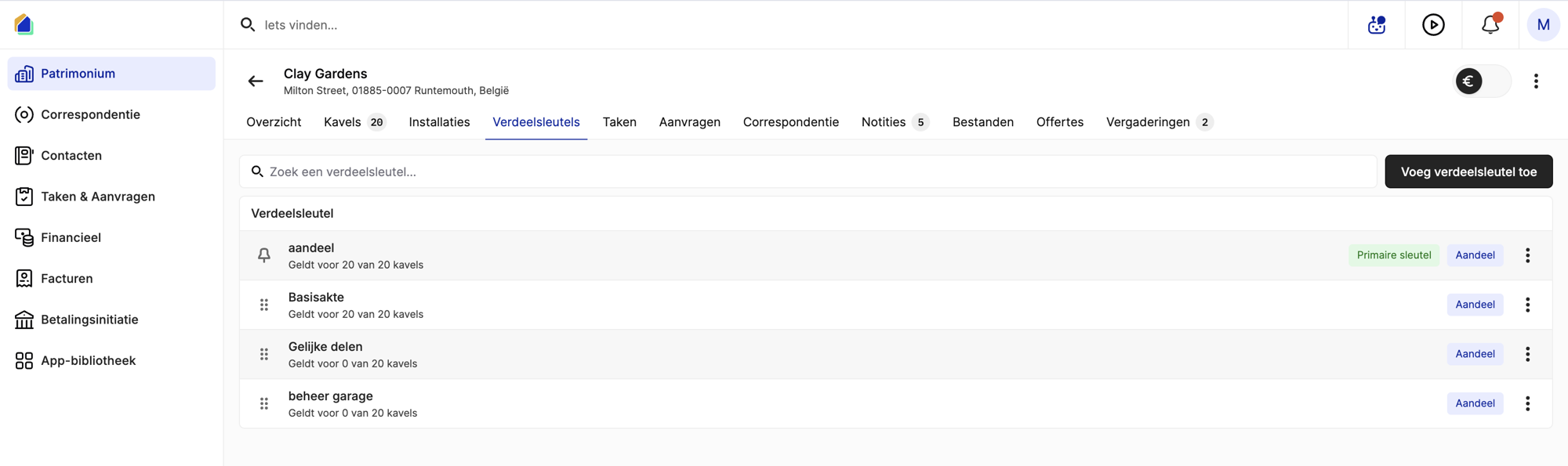
Guides: Create a building · Create a distribution key · Enter meter readings · Add an EPC certificate · Transfer ownership
Contacts
All co-owners, tenants and suppliers. A co-owner's page shows the units they own and their balance: what they still owe or have paid in advance.
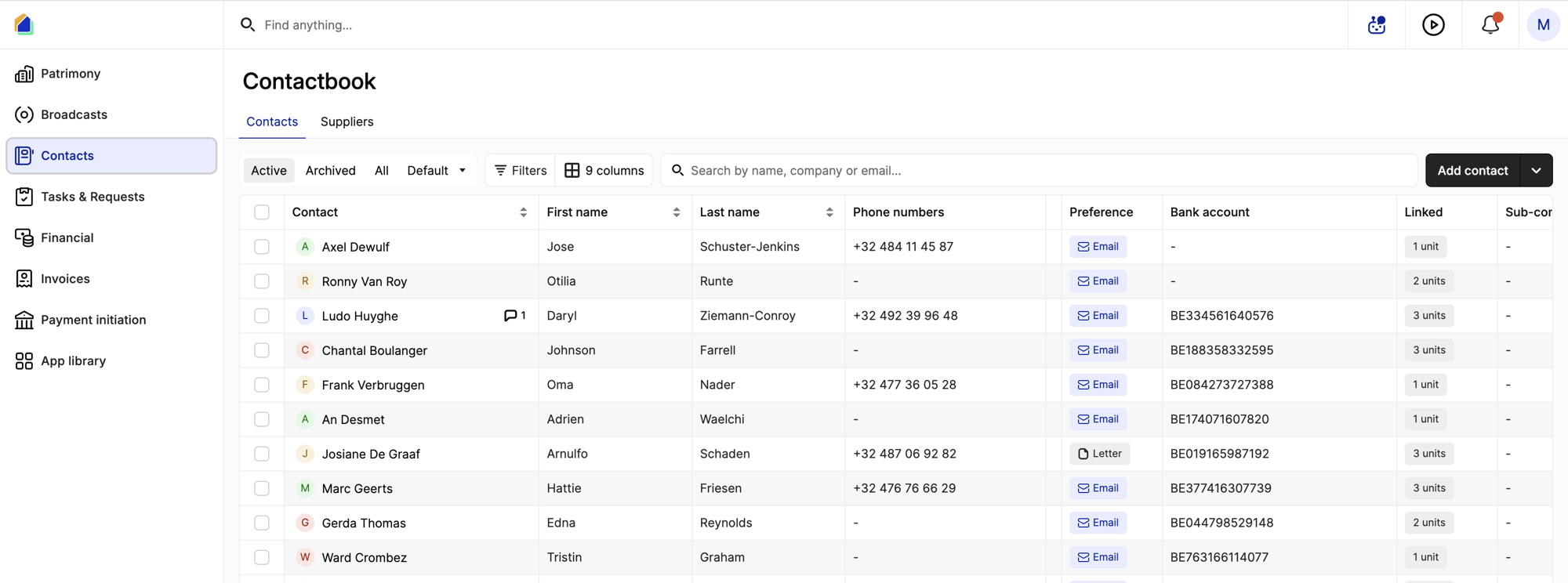
Guides: Create a contact · Create a supplier
Financial
The bookkeeping of one building at a time. Here you find the Dashboard, Funds (provisions and fund calls), Cost settlement, Bookkeeping, the Chart of accounts, Miscellaneous bookings, the fiscal year and the opening data.
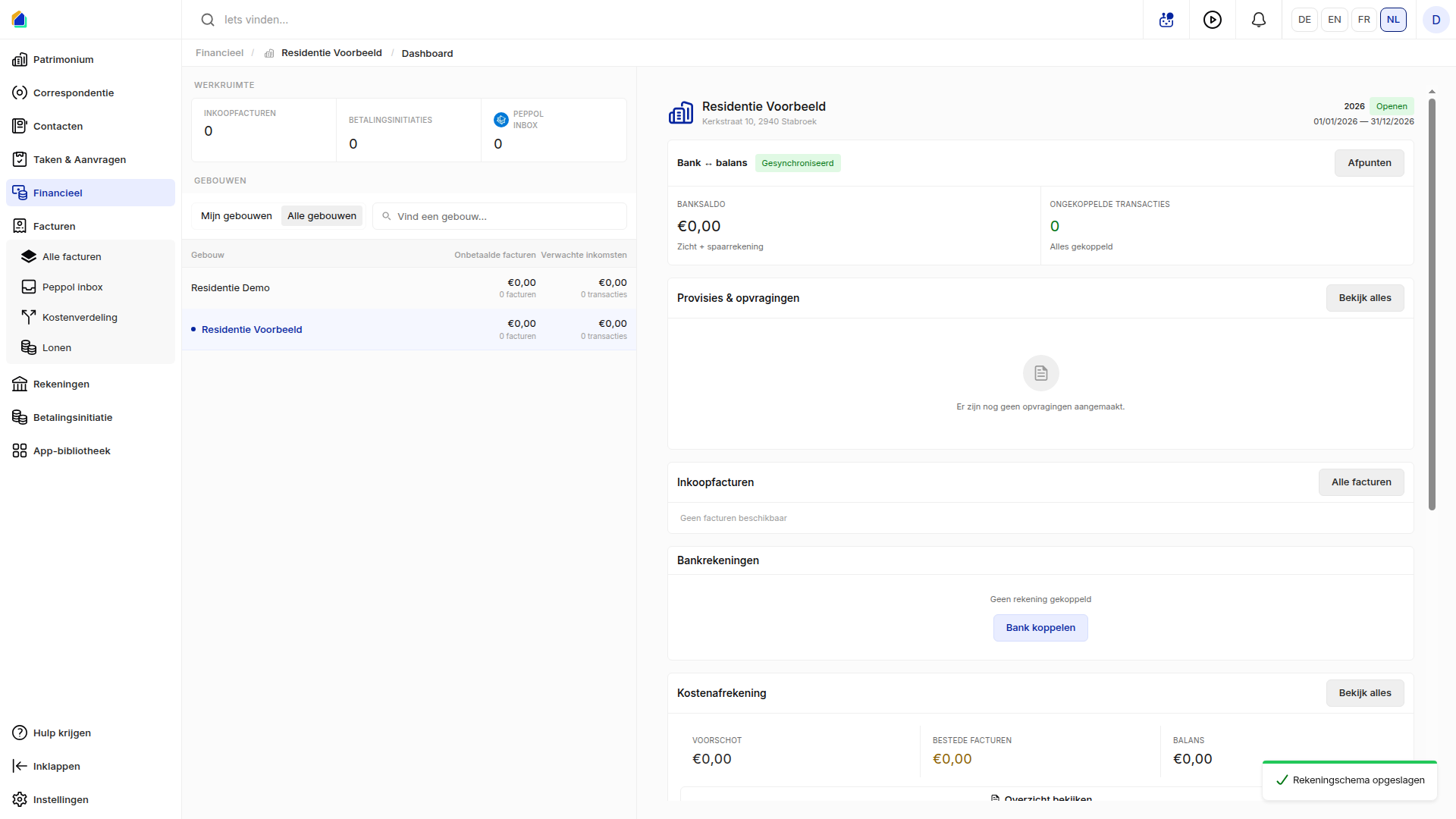
Guides: Set up the fiscal year · Set up the chart of accounts · Set up opening data · Create advance requests · Send provision letters · Cost settlement
Invoices
All supplier invoices, the Peppol inbox and the cost split per unit.
Guides: Process Peppol invoices · Book a utility invoice · Apply a credit note · Pay invoices · Settle an invoice via the reserve fund
Accounts and Payment initiation
The building's bank accounts and the payments you send from SNDQ. Incoming payments are matched here with what co-owners owe.
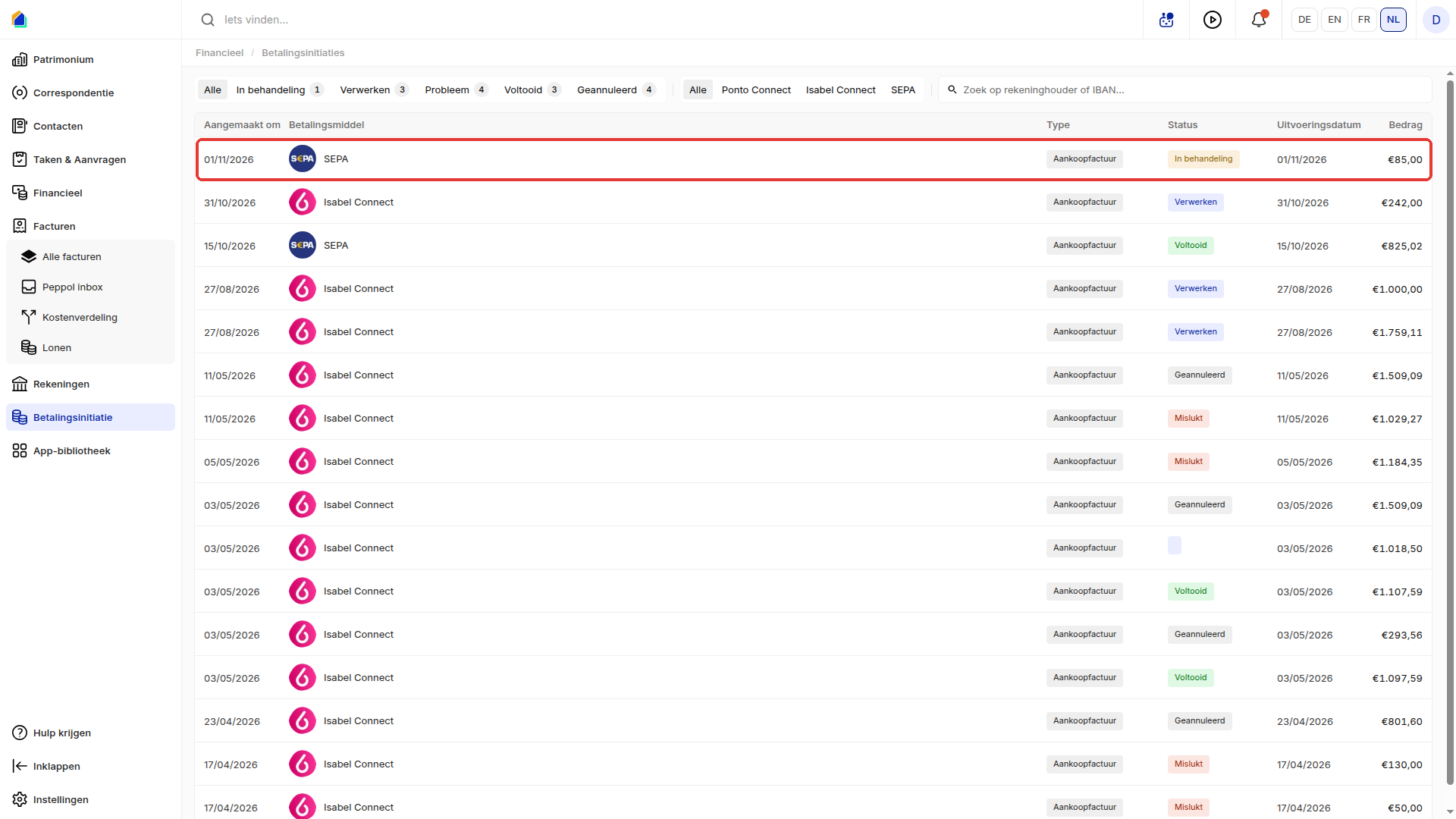
Guides: Connect Isabel · Sign and send an Isabel payment · Assign a payment · Reconcile payments in batch
Meetings
General meetings live inside each building. SNDQ supports annual, extraordinary and second-call general meetings: agenda, invitations, participants, proxies, votes weighted by shares, and the minutes.

Guides: Create a meeting · Send meeting invitations · Register proxies · Record votes · Generate the meeting report
Correspondence
Send an email, letter or registered letter to a whole building, to selected units or to individual contacts. Reusable templates save you time.
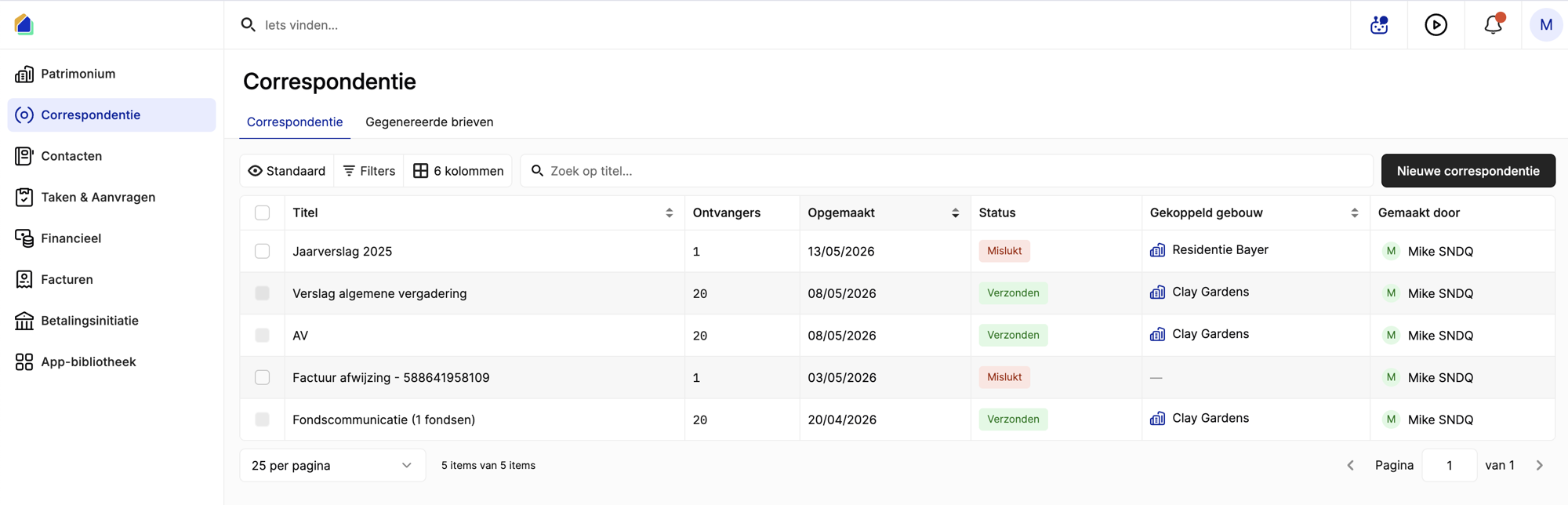
Guides: Send correspondence · Manage templates
Tasks & Requests
Follow up your own to-dos and the requests that co-owners send you.
Settings
Your workspace: Users, Integrations (Isabel, Ponto, Peppol, Exact Online), Templates, Reminders and your email domain.
Guides: Invite users · Set up your email domain · Configure your email signature
Where to start
When you log in for the first time, SNDQ shows a short checklist on the home page:
- Set up your building
- Confirm the chart of accounts
- Connect bank accounts
- Add suppliers
Once that's done, follow the Syndic workflows for the full roadmap. Look up any unfamiliar term in the Glossary.
Need help?
Use Get help in the bottom-left corner of SNDQ, or email info@sndq.be.