

Set up fiscal year
A fiscal year defines the accounting period for a building. All financial transactions — invoices, payments, cost allocations, and accounting reports — are tied to a specific fiscal year. Before you can start any financial operations for a building, a fiscal year must be created.
Why is it important?
| Impact | Description |
|---|---|
| Invoicing | Purchase invoices are booked within a fiscal year |
| Cost allocation | Costs are allocated to owners per fiscal year |
| Accounting reports | Balance sheet, income statement, and ledger reports are generated per fiscal year |
| Budget | Annual budgets are linked to a fiscal year |
| Settlement | End-of-year cost settlement is calculated per fiscal year |
How to set up the first fiscal year
You create a building in Patrimony. You set up its first fiscal year afterwards, in Financial, yourself, together with its chart of accounts. Until you do, the building shows Accounting not set up yet there instead of its dashboard.
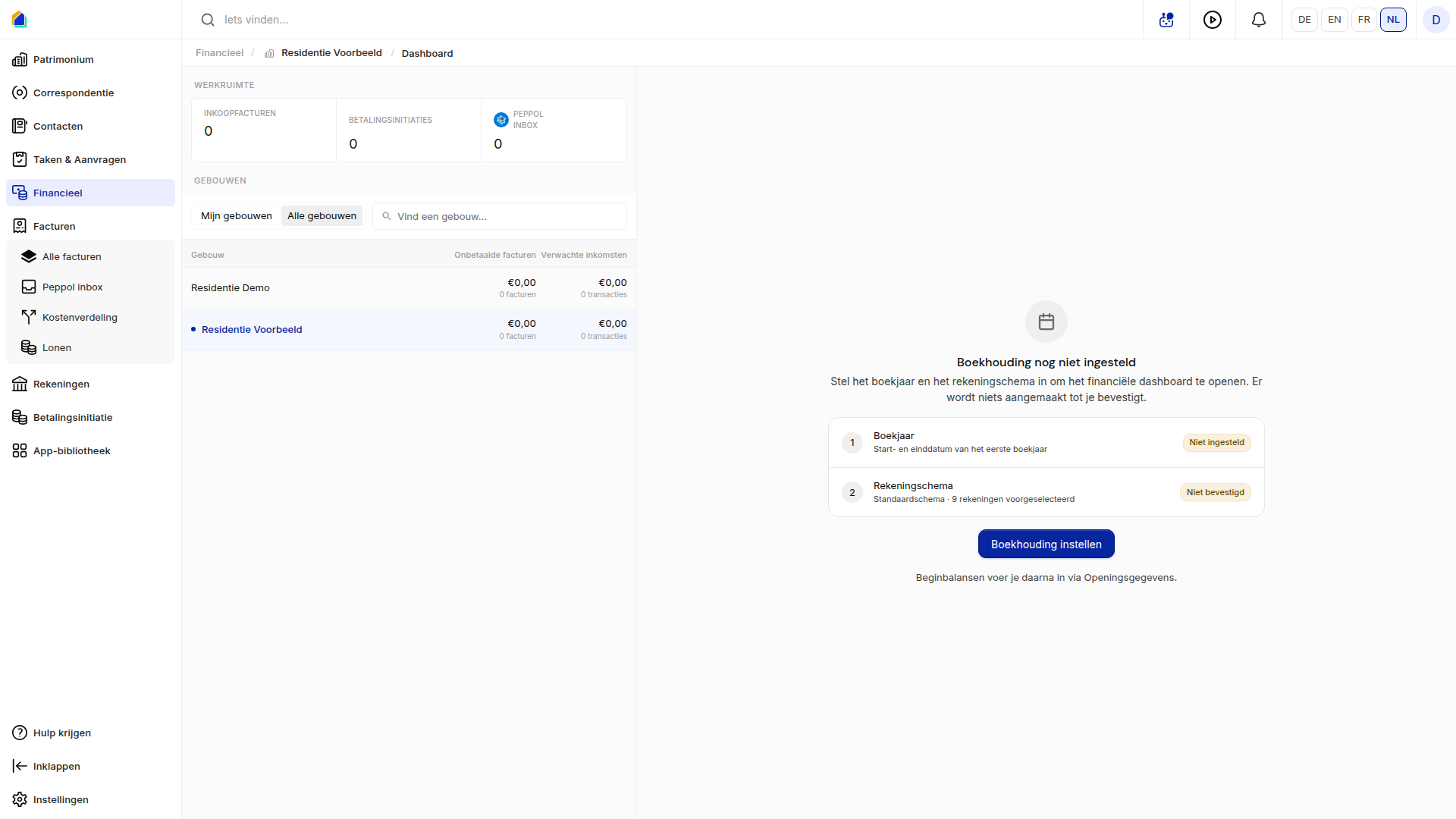
- Go to Financial and click the building.
- Click Set up accounting. The Set up accounting window opens. Nothing is created until you confirm.
- On the left, under Fiscal year, pick the Start date and End date. SNDQ suggests the current calendar year (1 January to 31 December). When the building's year runs differently, for example 1 July to 30 June, change both dates.
- SNDQ fills in the Fiscal year name itself: the year (2026), or both years when the fiscal year spans two (2025-2026). Below the dates you see how many monthly periods the year has.
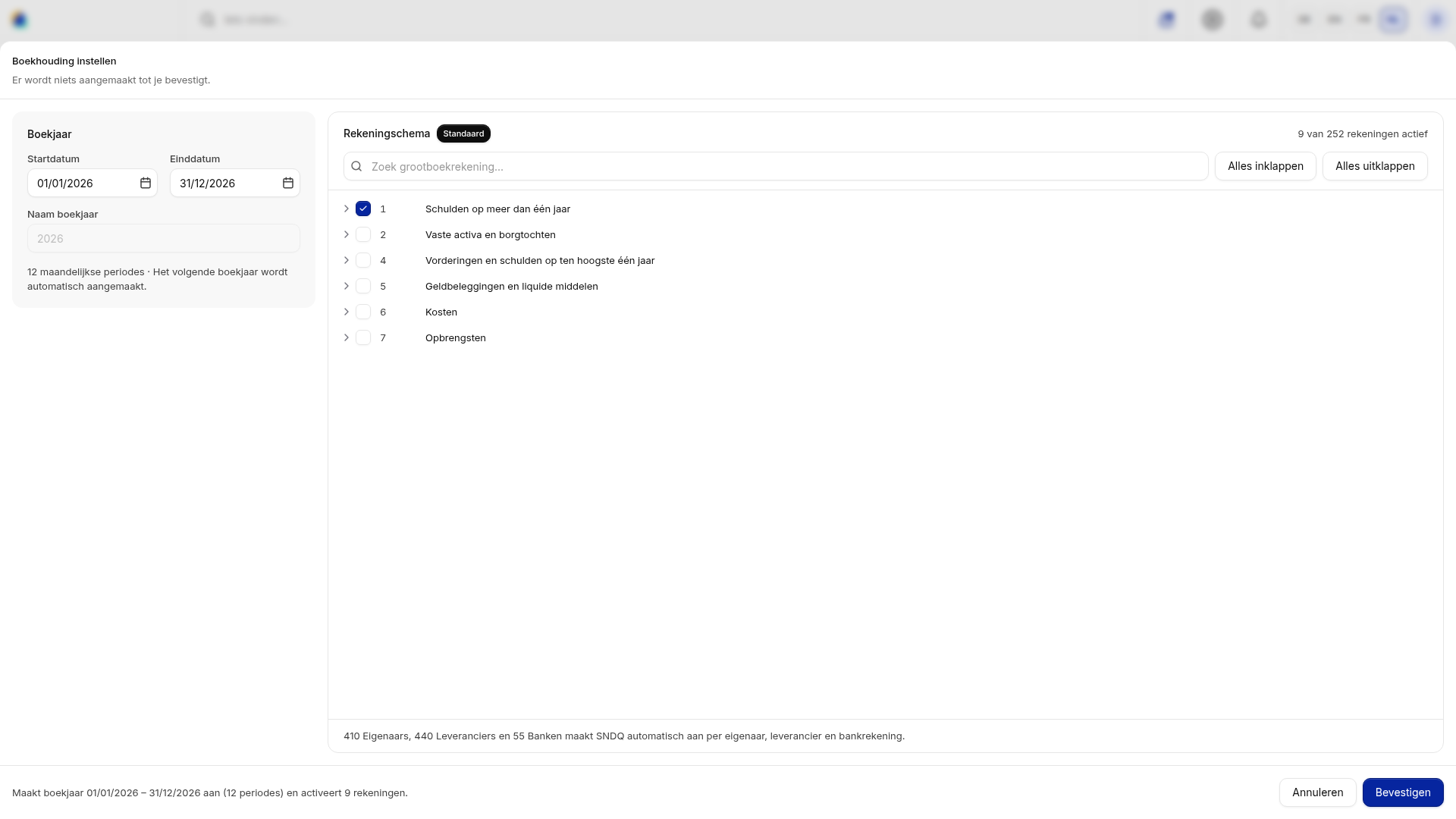
- On the right, choose the accounts of the chart of accounts. Set up chart of accounts explains how.
- Check the summary at the bottom, for example "Creates the fiscal year 01/01/2026 – 31/12/2026 (12 periods) and activates 10 accounts.", and click Confirm.
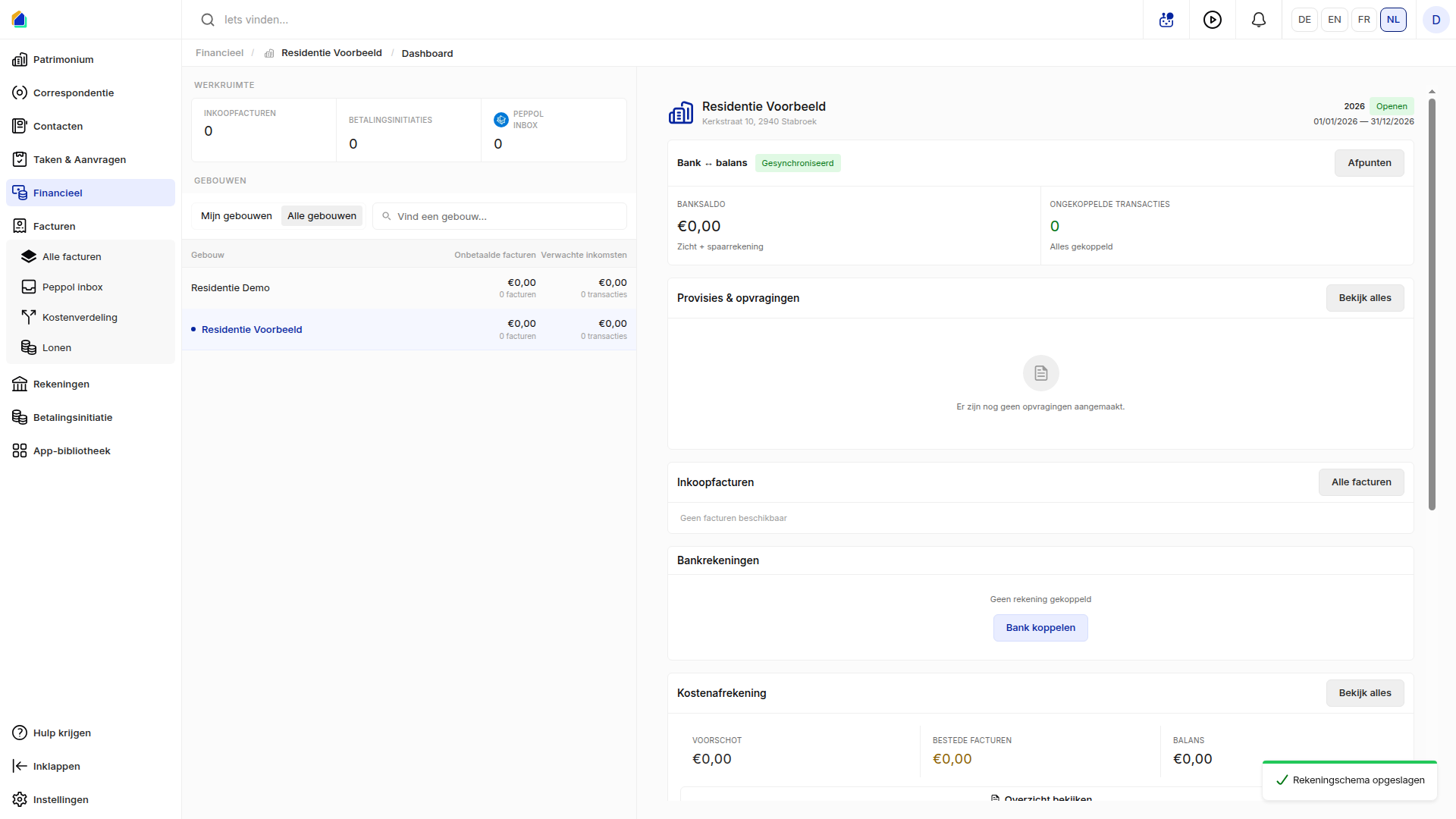
- The financial dashboard opens, with the fiscal year and its status Open at the top right.
Rules for the first fiscal year (when a date breaks one, the message shows under the field and Confirm stays grey):
- It starts today or earlier.
- The end date is at least one day after the start date.
- It lasts at most 24 months, so a longer first year is possible, for example 1 July 2025 to 31 December 2026.
SNDQ creates every next fiscal year automatically.
Does a building whose chart of accounts is already confirmed still have no fiscal year? Set it in step 2 of Set up opening data, or contact SNDQ support with the building name, start date and end date.
Verify the fiscal year
Go to Financial and select the building. The fiscal year's name, status, start date and end date show at the top right of the dashboard.
Good to know
- A fiscal year typically runs from January 1 to December 31, but can be configured differently depending on the building's statutes (e.g. July 1 to June 30).
- Multiple fiscal years can exist for the same building (e.g. 2025, 2026).
- A fiscal year must be created before you can book invoices, allocate costs, or generate accounting reports for that period.
- To see another fiscal year, click Bookkeeping under Quick access and pick it under Fiscal year at the top right.
- You close a fiscal year on the Bookkeeping page, in the Close year tab.
Need help?
Contact SNDQ support:
- Via the Get help button in the left sidebar
- Or email support directly